Changelog

Follow new updates and improvements to Digs.

Framing Up Some Big News: July and August Recap
We closed out summer with a big one. Here's everything that shipped in July and August.


Digs is Partnering with Builders FirstSource

Builders FirstSource led our $25.3M Series A and signed a five-year commercial agreement to bring AI-powered workflows to homebuilding at scale.

Together we're turning thousands of disconnected construction documents into one connected source of truth: plans, specs, selections, approvals, warranties, and project history in one place. For the 140,000+ builders BFS serves, that means faster decisions, less rework, and a better experience for every homeowner. Read more


Limited Collaborators: More Control Over Private Conversations and Tasks

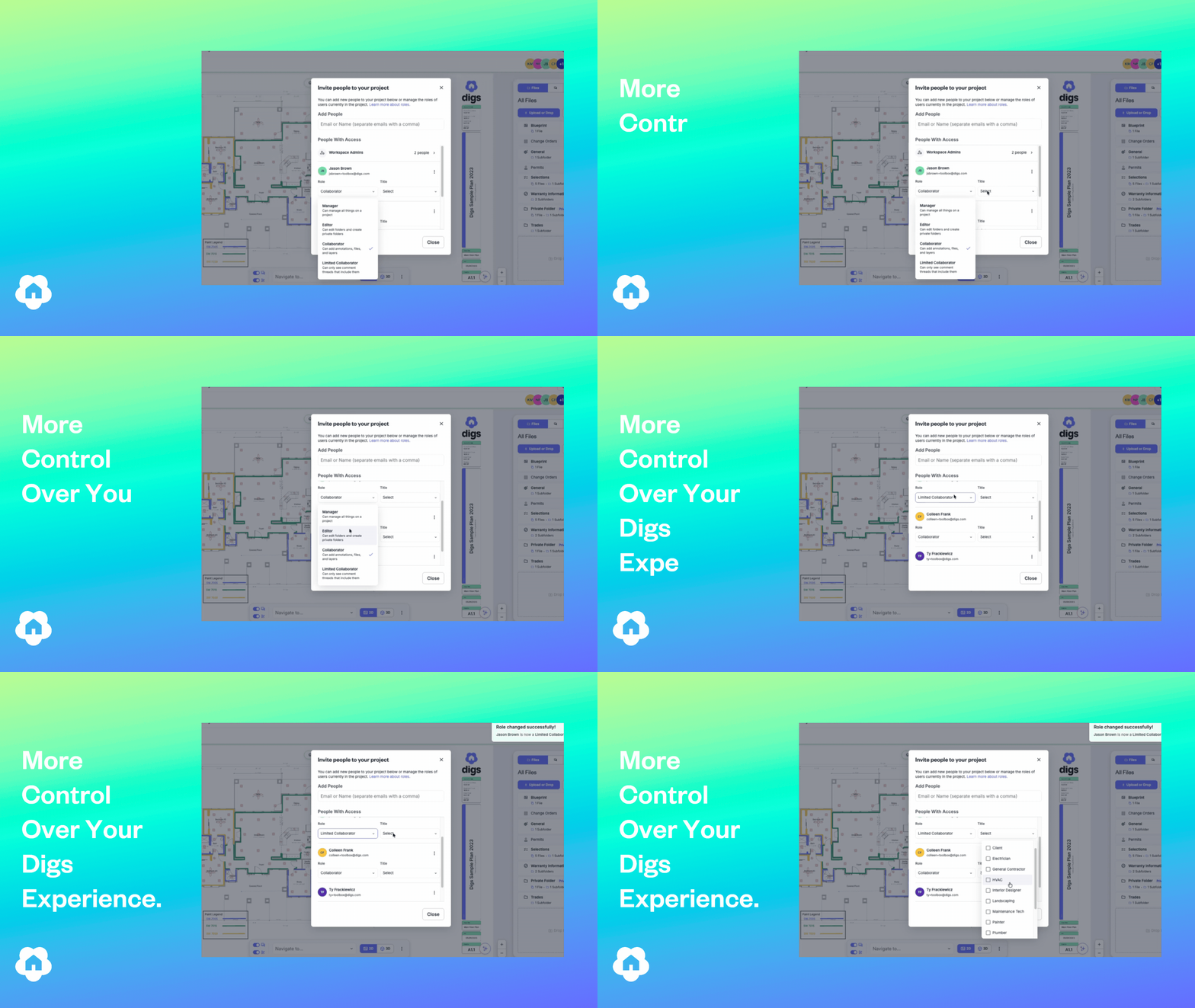
Not everyone on a project needs every notification. The new Limited Access role lets builders and project managers add someone to a project without opening them up to being @mentioned into everything. They're there when you need them, quiet when you don't.

Look for it: Choose Limited Collaborator as a role when managing users on a project. Full details in our support documentation.


Homeowner Handoffs: Invite Additional Users

A home rarely runs on one inbox. Until now, only whoever got named Homeowner at handoff had access, and that list was locked. Now homeowners can add more Managers. The moment someone gets the role, they get full access to the Homeowner Dashboard and DigsCare, so they can file requests and check coverage without waiting on you. Pull the role and the access leaves with it.

Look for it: In project settings, mark users as Project Managers to give them Homeowner functions.


User Titles: See Who’s on a Project

Project rosters shift, and it's not always obvious who's the builder and who's the electrician. Now every project user can carry a title that shows right next to their name. Fourteen options are available, from Builder to Vendor, and none is applied by default.

Look for it: Titles show next to names anywhere a project's user list appears.


DigsCare and Warranty Improvements

Follow-Up dates on tickets. Set a follow-up date on any ticket to mark the deadline for the next action. Customers never see it. Your warranty team gets alerted when something's due and can filter to just the tickets waiting on action. It also lands in the Dashboard report spreadsheet, ready for meetings.

Automatic project access for Warranty Agents. Agents used to see tickets across projects but couldn't create a new ticket or open project documents without an invite. Fixed. Agents are now auto-included in every handed-off and warranty-eligible project.

"Group by" now carries to exports. Group your Warranty Dashboard tickets by project and that grouping shows up in the exported document. You asked, we did it.


Base Layer Can Now Be Turned Off

When we shipped Base Layer as visible instead of hidden, most of the feedback was good, and plenty of you said we didn't go far enough. The top request was to turn Base Layer off completely, so any document or floor plan can start as a clean slate. That's live.

One note: if you add annotations while no layer is active, Base Layer turns back on automatically.


Introducing Digs Toolbox in Our Refreshed Support Center

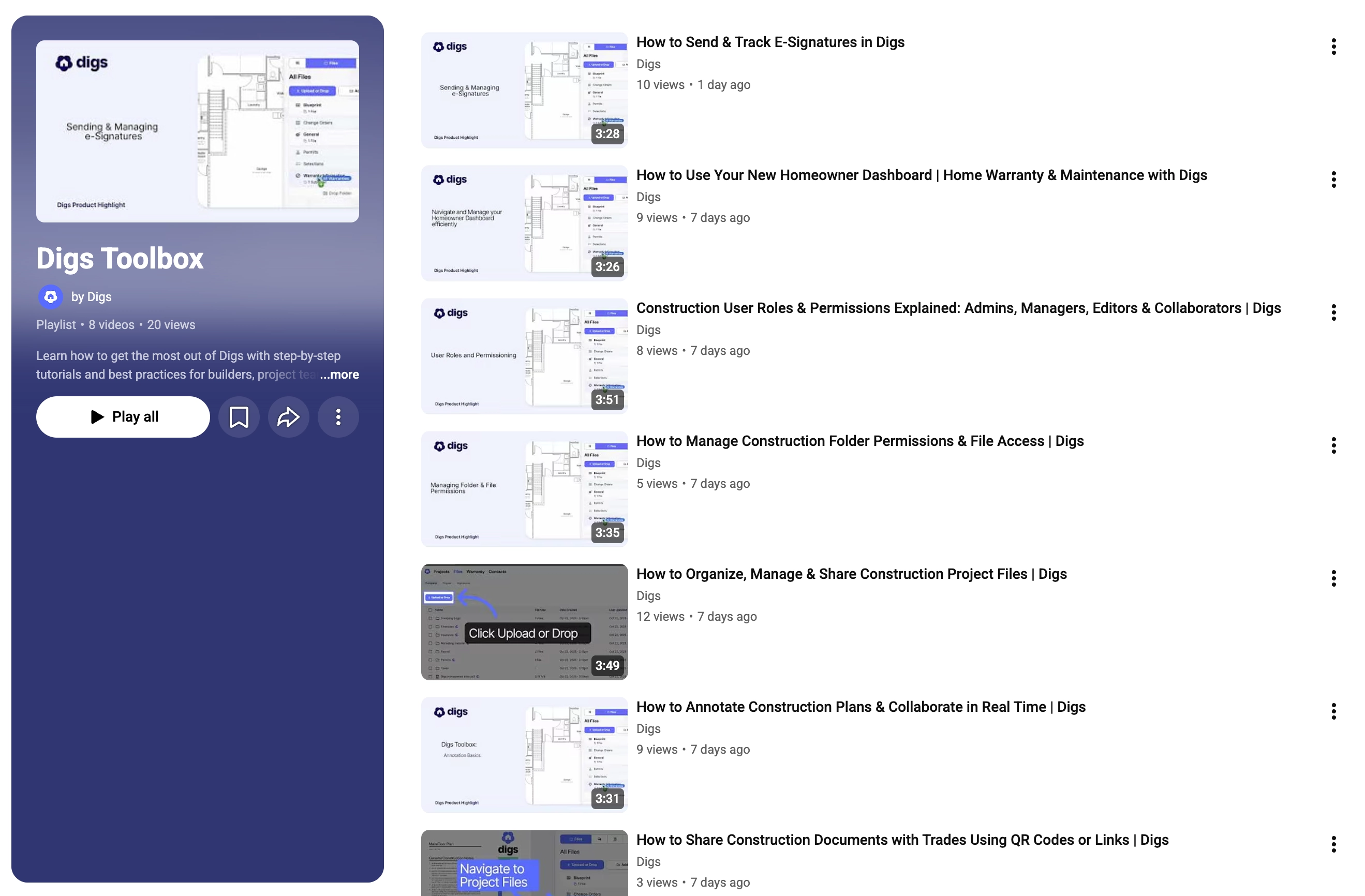
We reorganized the Digs Help Center so answers are grouped by what you're actually doing. We also launched the Digs Toolbox, a growing library of video tutorials covering the whole product. Find them in the Help Center or on our YouTube channel. Head to support.digs.com to take a look.

Small, but Mighty Updates

Print button on Share Links. A Print button now sits next to Download in the Share Links document view, for a quick offline copy of the source file.

Logos on QR Codes. Upload a square logo in Workspace Settings and it'll show up on your QR codes automatically. Existing codes keep working, and anything shared digitally picks up the logo once the upload finishes.

Scrollable Warranty Tickets Sidebar. The sidebar now scrolls, so a long list of attachments and suggested documents never gets squeezed into a tiny space.

Bug Fix. Date pickers in Warranty, Tasks, and other areas could sometimes accept malformed years and throw errors. Resolved.


Pro Tip: keyboard shortcuts

Hit Shift + / to pull up the full list of shortcuts in Digs. They make navigating and editing a lot faster once they're in muscle memory.


June Updates: Hot Off the Grill

📣 Signatures: See Exactly Where Things Stand

The Signatures side panel got a major upgrade. Click a signature request's status chip to see each signer's progress— signed, pending, or declined— along with a timestamp of their most recent activity.

Waiting on someone? You can see whether they've viewed the request or received a reminder, and when. If you've canceled a request, the panel switches to a "Did Not Sign" view so you're not distracted by activity history that no longer matters.

No more guessing who's holding things up.

👉 Send a Document for Signatures


🚀 Share Conversations in One Click

Need to bring someone into the conversation? You can now copy a direct link to any comment or task and share it with your team, trades, or clients.

One click takes them straight to the conversation— no searching required.


✅ Warranty Tracking: Cleaner & More Reliable

We’ve made a few improvements to help you manage and report on warranty tickets more efficiently.

  • Filter Before You Export: Apply filters to your Warranty Dashboard before generating reports, ensuring you export only the tickets and data you need.

  • Smoother Ticket Editing: Fixed an issue where special characters (like ?) in ticket subjects could trigger the help menu. Inline editing is now seamless, with no more keyboard conflicts.


👀 Base Layers are now Visible

Digs has always had a base layer; you just couldn't see it. This update makes it visible in your layer list so you can toggle it, exclude it from exports, and move items off it to a more specific layer. Nothing about how your data is stored has changed.

👉 Try it now!


📷 Company Cam - A simple path to visual documentation

You don’t need CompanyCam to get the full value of Digs— we’ve built powerful documentation and photo management tools right into the platform.

That said, if your team already uses CompanyCam, the two tools complement each other well. While a formal integration isn’t available yet, many builders are successfully using both to streamline field documentation and project collaboration.

CompanyCam is built for capturing photos on the job site. Digs is built for organizing and storing what matters long term. Used side by side, they give your team a clean way to document project stages from framing to finish, then carry the right records forward into warranty and homeowner handoff.

If you're already using both tools and want to sharpen how your team moves between them, we’d love to hear from you. We're assessing whether a more direct connection makes sense— and that conversation starts by hearing from the people doing the work. The more we understand how builders are using these tools together today, the better we can shape what comes next.

More Details here and a new User Guide

💡 Did you know?

⚡ Pro Tip: Not every document belongs in the homeowner’s project.
Separate internal and homeowner files from the very start. Hand off becomes much simpler when everything is already organized.

April Showers Bring May...Features!

📢 Overlay Tool is Here!

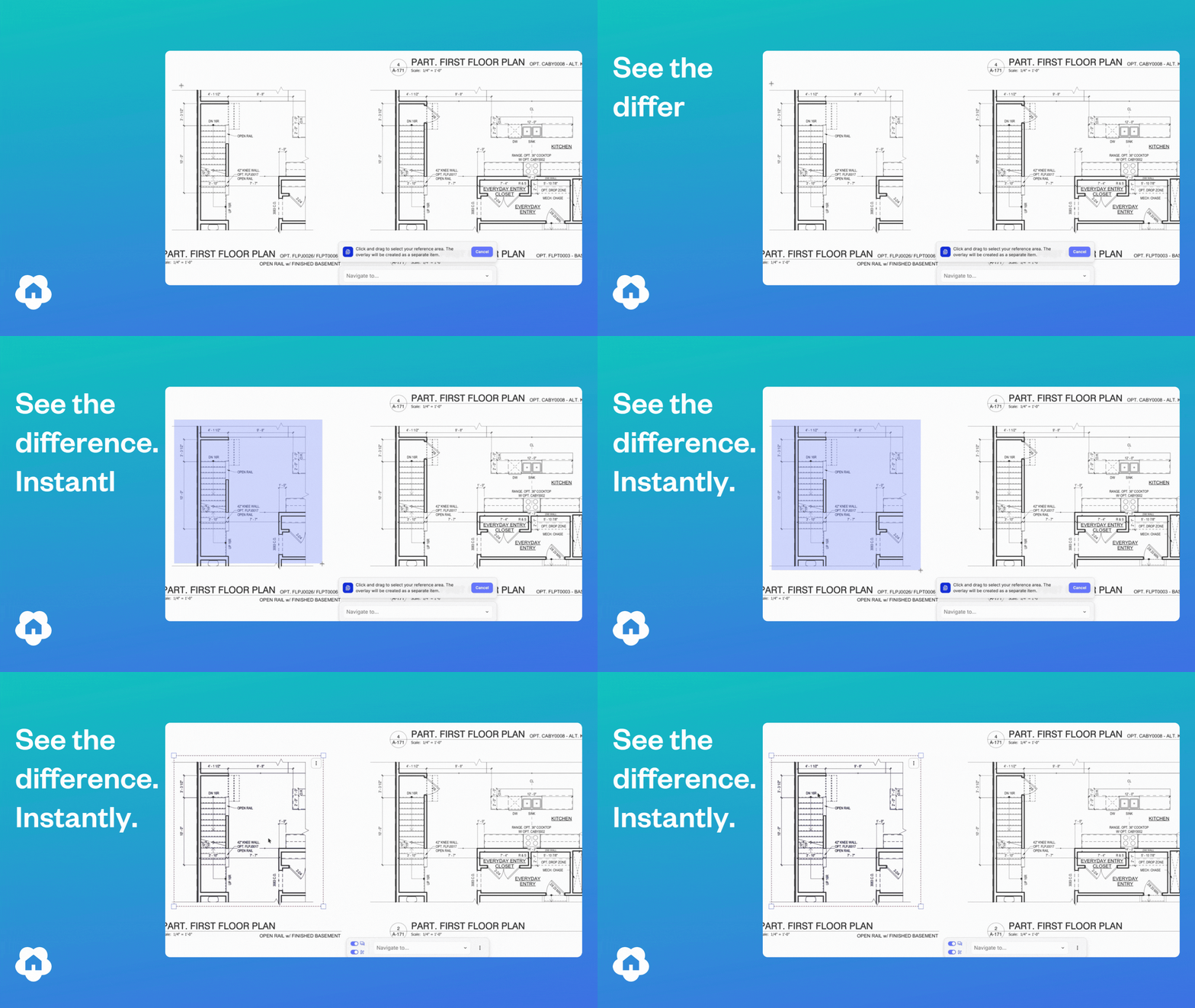
The Digs Overlay Tool, is a powerful new way to visualize your plans, now available across Digs. For Pro & Enterprise users, The Overlay Tool lets you drop a semi-transparent region directly onto any floor plan — perfect for comparing plan versions, highlighting scope areas, quickly seeing differences or calling out exactly what matters in a review.

Three modes for every workflow. Switch between display modes depending on what you're trying to see:

  • Colorized — tint and outline a region in any color to make it pop

  • Comparative — layer overlays against the base plan or plan versions to validate measurements and differences with color differentiation. If things are different, it turns blue!

  • Opaque — block out regions cleanly when you need a solid fill or show how a plan option looks on a base home

👉 See it to believe it


📣 Expanded Color Picker

When we say we value customer feedback, we mean it. We heard loud and clear that an expanded color picker was crucial to the experience, so we delivered. The new color picker shows up wherever you set color in Digs, on project plans, in documents, and in the layers panel, looking and behaving the same way every time and remembering your colors no matter where you open it.

  • Pick from 35 standard colors — Open the picker and choose from a curated palette of 35 neutrals, primaries, and pastels, with tabs to switch between fill and stroke without closing the picker.

  • Enter an exact color with hex — Enter a hex code directly into the input and type in opacity from 0–100%, with a red indicator that flags any typos so nothing breaks and nothing closes.

  • Sample any color on screen with the eyedropper — Click the eyedropper, then click anywhere in Digs to instantly grab a color from any drawing, stamp, or layer, no hex hunting required.

👉 Try it out for yourself!


✅ eSignature Improvements

A couple of quality-of-life updates have been added to the Digs eSignature process. In both cases, you can find them by locating the eSign you want and clicking the three kebab dots on the far right.

  • Correct a recipient. You can now update the recipient's name and email address. Handy for fixing typos, and you can also use it to redirect the document to a different signer if you sent it to the wrong person.

  • Cancellation reason. When you cancel a signature, there's now a spot to note who cancelled it and why. The note stays attached for later reference. Hover over the Cancel status to see the reason for a given cancellation.


👀 In Case You Missed It

ICYMI: Public share files and folders

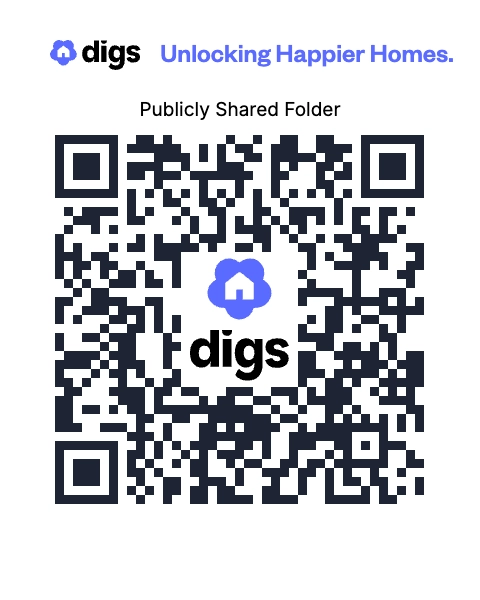
A while back we shipped public sharing. If you missed it, here's the gist: any file or folder in Digs can be shared through a URL or QR code, and whoever you send it to doesn't need a Digs account to open it.

Folders are the fun part. When you update a file inside a shared folder, the link keeps pointing to the latest version. No re-sending, no "wait, is this the new one?"

Handy for the field. Print the QR, stick it on the trailer wall or in the plan binder, and anyone on site can pull the latest drawings, specs, or selections. Subs who aren't in Digs still get what they need. Inspectors can grab a doc on the spot. Your PM stops emailing the same files three times a week.

Try it out Here - Or scan the QR code below!


💰 Supplement your summer with cash referrals!

Lots of teams forget Digs has a referral program! The “Refer and Earn” program is stashed in the top right of our application under the “Gift Icon”.

Copy your Invite link and share it with teams you know could benefit from Digs. Drop a link on socials using the quick post buttons.

The details are easy:

  • You give a Discount to them when they purchase Pro users This is not the same as inviting collaborators to your projects - These would be new companies who are looking for tool solutions like Digs.

  • You Earn cash from these signups - Every Referred company who purchases Digs is a separate $500 referral cap Example - Bob the Painter signs up using your Invite and buys 2 user seats, you would earn a $25 bounty from Bobs first purchase, then 10% of Bob’s Dig spend each month until you hit $500. If he adds more users each month, you hit that cap faster, and he gets to keep using the 20% discount 😎. Repeat this with more companies and you start new referral caps. Easy!.

Learn more here and start getting some BBQ money!


💡 Did you know?

⚡ Pro Tip: Skip folder hunting! Use Search in plain language. Type something like "kitchen faucet" or "HVAC manual" and Digs surfaces the document, we recognize and index all document text in the background as you upload.

⚡ Pro Tip: Supplement documents with photos! Snap a photo of the data plate on every appliance and piece of equipment. This simple action is one of those game change moments when a warranty issue arises and your customer does not need to go search that info out. Stored this named image (eg. Whirlpool Dishwasher Data Plate.jpg) in the same Digs folder as the matching manual or warranty.

⚡ Pro Tip: Assign vendor installations as you go Part of the Digs value is about future proofing - Attribute each item in the handoff to the sub who actually installed it. Should the dishwasher leaks in year two, the homeowner pings your plumber directly with the right context, instead of calling your office and pulling you off a job to track down a phone number.

Earlier updates