Using Point-to-Point Measurements in Digs
This guide explains how to use the tool and what’s included.
Written By Ty
Last updated 11 months ago
Support Guide: Using Point-to-Point Measurements in Digs
The Point-to-Point Measurement tool in Digs allows you to take precise measurements for even the most complex spaces, whether you’re tracing curved staircases, angled walls, or unique cutouts. This guide explains how to use the tool and what’s included in this release.
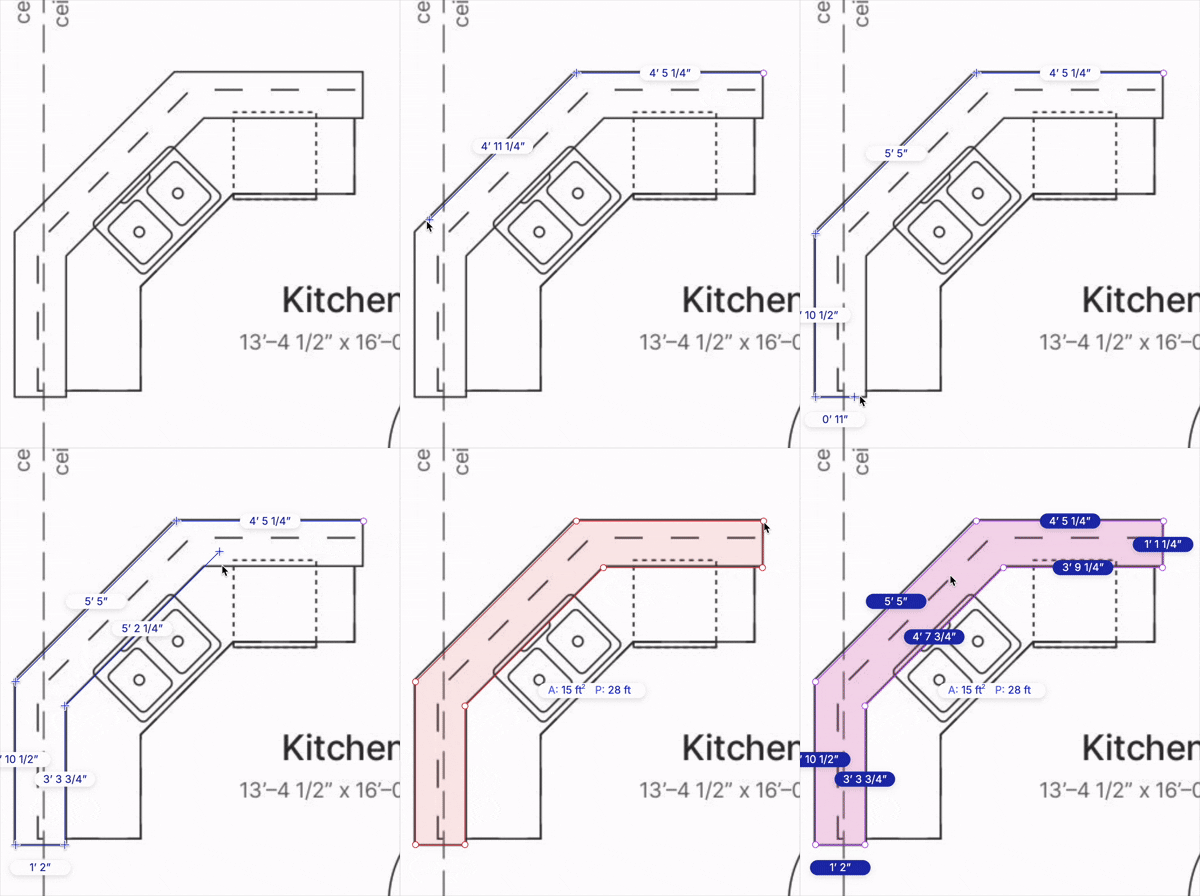
Overview
Digs previously supported only straight-line and rectangular measurements. The new Point-to-Point Measurement tool enables:
Custom shapes and complex paths with multiple points
Real-time linear and area calculations
Color-coded organization by material type or trade
Fully editable measurement lines and points
Total Calculated Length (TCL) for multiple segments and perimeter
This tool helps reduce errors, improve collaboration across trades, and speed up estimating workflows.
Key Benefits
More Accurate Takeoffs & Measurements – Easily trace irregular layouts
Trade-Specific Clarity – Color-code measurements for tile, carpet, trim, etc.
Faster Adjustments – Move, delete, or fine-tune individual points
Simplified Collaboration – Create shareable, visually organized plans
How to Use the Point-to-Point Measurement Tool
Open a Floor Plan in your project
Select the layer you would like the measurement to be connected to
Select the Measurement Tool from the toolbar
Choose the Point-to-Point option
Click to drop points anywhere on the plan
Hold
shiftwhile drawing your point and will enableOrtho LockHold
spacewhile placing your next measurement topanaround the plan to precisely place the measurementDouble-click, hit
enterorescor close the shape to finish a measurementOptional: Choose a color for your measurement line (default is blue)
Use Undo or Redo as needed to edit your path
Editing Measurements
Move or delete individual points
Change line colors via the color picker
Delete the entire measurement or modify segments
What You Can Measure
Flooring areas (carpet, tile, hardwood)
Trim lengths and perimeter counts
Countertops and backsplashes
Irregular rooms and custom layouts
FAQs
Can I color-code by trade or material?
Yes. Use the built-in color picker during or after placing a measurement.

What’s the best way to measure odd-shaped areas?
Use point-to-point for anything that’s not square or rectangular—click each edge or boundary, and Digs will auto-calculate area or linear footage.
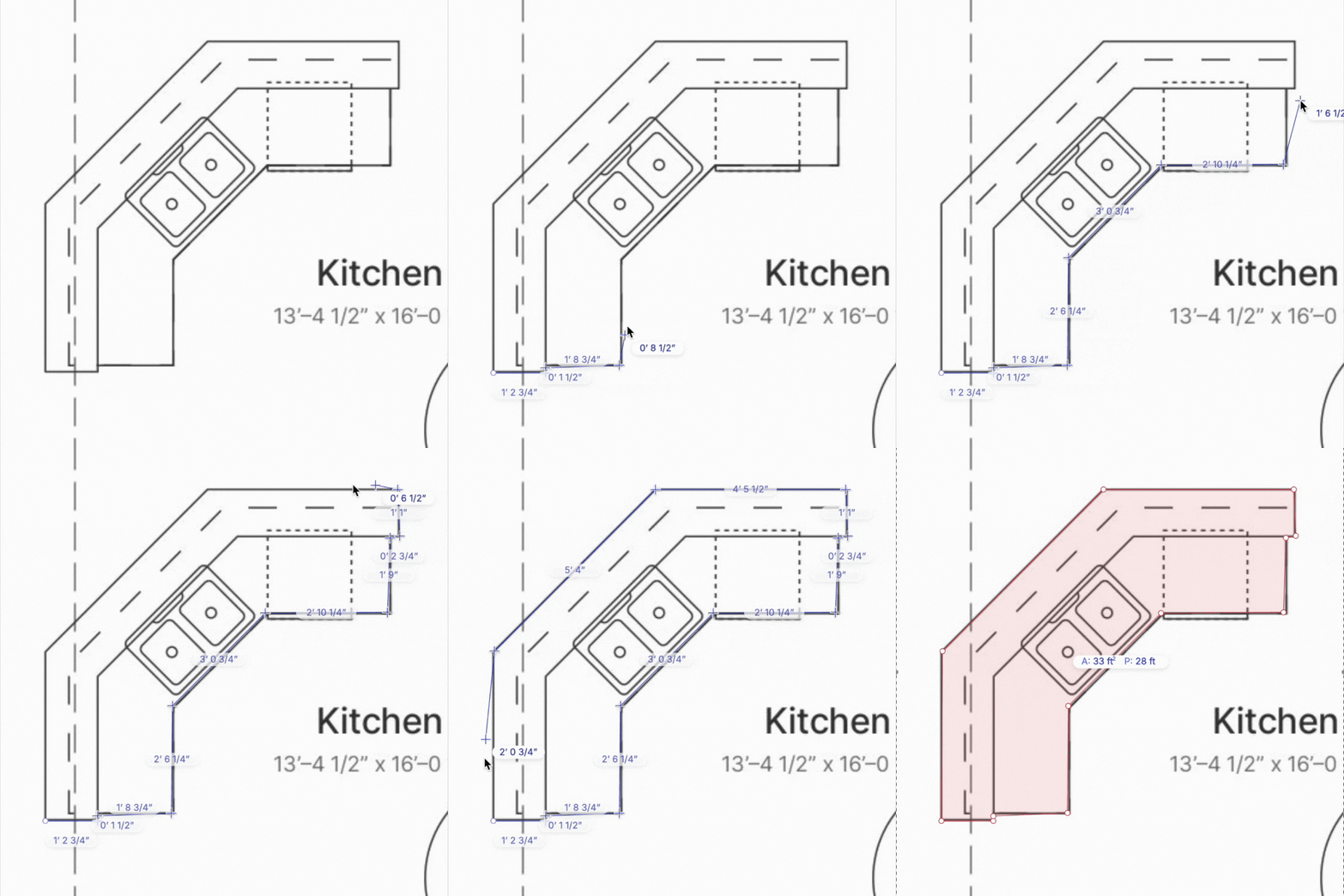
Can I snap to other objects like cabinets or walls?
Yes! You can snap to wall edges, corners, cabinets, and intersections. See link for more information.
Can I adjust measurements after placing them?
Yes, just select the measurement and move, delete, or re-draw specific points.

Feedback
If you have feedback or requests for this tool, reach out to us via support@digs.com or use the Give Feedback option in Digs.