Measurement Snapping
Written By Nira Patel
Last updated 12 months ago
Overview
Measurement Snapping brings precision to your takeoffs by allowing measurement points to automatically align with architectural features like walls, corners, and cabinets. No more guesswork—just accurate, reliable data every time.
🔧 Key Benefits
Faster Measurements: Snap to the right spot instantly—no need for manual adjustments.
Improved Accuracy: Reduces measurement errors across teams and devices.
Streamlined Workflow: Keeps everyone aligned with professional-grade measurement tools.
🛠 How It Works
Snap Targets: Wall edges, corners, cabinets, intersections, blueprint measurement lines, and architect figures.
Exclusions: Room names, plan measurement labels, measurement midpoints, and existing measurement nodes.
Snap Feedback: Visual highlights and cursor changes when snapping is active.
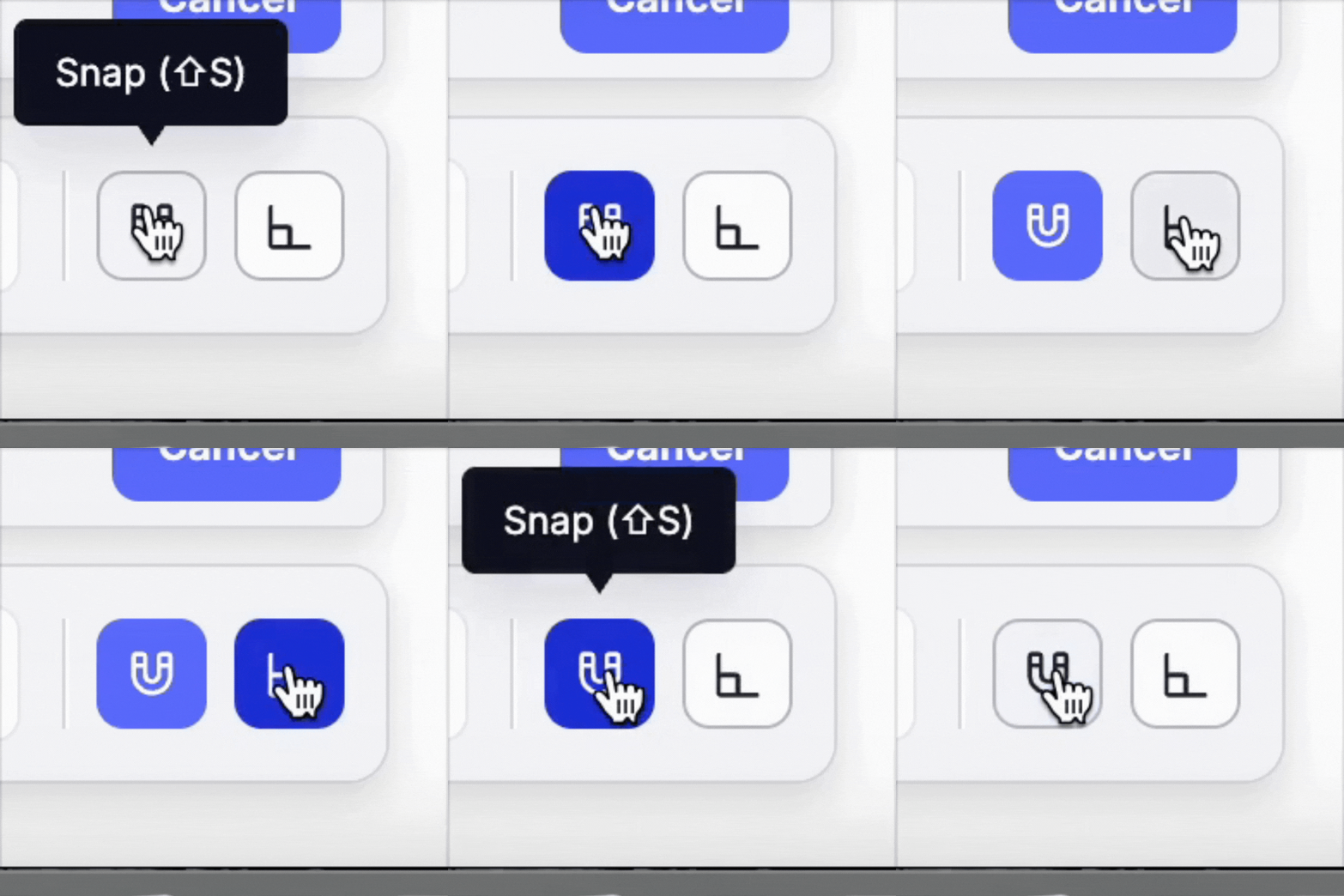
Toggle Snapping: On/off toggle available in the measurement toolbar.
Ortho Snapping: Restricts drawing and movement to perfectly horizontal and vertical (90° angles), and diagonal (45° angle) directions.
Keyboard Shortcuts:
Hold Shift or Command/Ctrl to temporarily activate snapping
Arrow Keys + Enter to place a point at a specific distance
Shift locks angles to 90° (Ortho Lock)
ESC/Enter/Double-click to exit
👤 Who It’s For
Builders
Estimators
Contractors
Project Managers
⚙️ FAQ
Q: What does “snapping” mean?
A: Snapping automatically aligns your measurement point to the closest eligible edge, corner, or architectural feature.
Q: Can I turn snapping off?
A: Yes. You can toggle snapping off from the toolbar or hold a modifier key to activate temporarily.
Q: Can I snap to midpoints or comments?
A: Not currently. Snapping is limited to structural elements—midpoints and markup annotations are excluded.
Q: Does this work on mobile?
A: Not at this time. Measurement snapping is only available on desktop and tablet (landscape) experiences.
Q: Can I type in exact lengths?
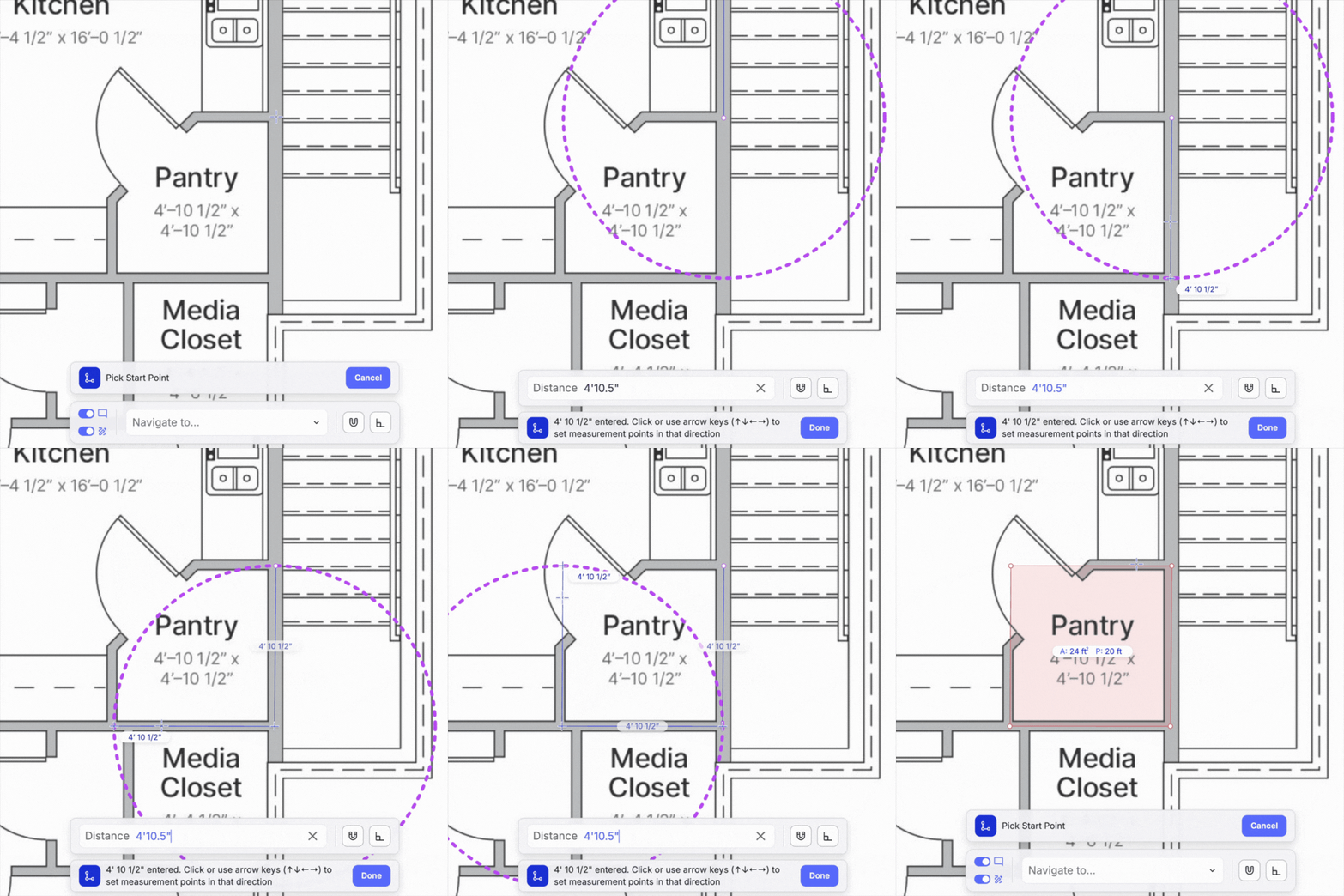
A: Yes. You can type in exact measurements using the “Distance” input field
How to Use the Distance Measurement Tool:
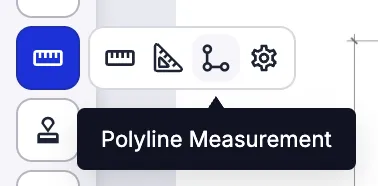
Select the Polyline measuring tool.
Click to place your first point.
In the distance field, enter the exact length you want to measure.
Simply hit the arrow key in the direction you would like the measurement to be placed OR when the reference circle pops up, place the point along the circle where it belongs.
Repeat process as needed for additional measurements.
📏 Advanced Features
Ortho Lock: Hold Shift to constrain measurements to 45° or 90° angles.
Previous Point Snapping: Snap to existing points to close shapes or repeat paths.
Undo/Redo/Copy/Paste/Rotate available via keyboard shortcuts or toolbar.
🔍 Known Limitations
Disabled on small mobile screens
Does not snap to markup shapes or freeform notes
Calibration snap not yet implemented
💡 Tips for Best Use
Use the toolbar toggle to enable/disable snapping per task.
Use snap hover indicators to confirm alignment before placing a point.
Combine with color-coded measurements to organize by material or trade.