Creating and Managing Tasks
Written By Nira Patel
Last updated 6 months ago
The Tasks feature in Digs allows builders, project managers, and team members to create tasks directly on the floor plan. Tasks are pinned to exact spots on the plan, and can be assigned to team members, and tracked with due dates and reminders— keeping your entire project team aligned without leaving the plan or dynamic island view.
📌 Tasks are pinned to a specific location on the floor plan and tied to a plan layer (e.g. HVAC, Electrical). Each task shows the assignee's avatar directly on the plan for instant visibility.
Creating a Task
To create a new task, use any of the following methods:
Keyboard shortcut: Press Shift+C, then click the plan to place a Task
Toolbar button: Click the comment icon in the left toolbar. It expands to show two icons; click the clipboard icon to place a Task
Convert from a Comment: Place a Comment anywhere on the plan, then click the Comment dropdown at the top of the popup and select Task to switch the type.
Once the task creation popup is open, fill in the details below.
Step 1: Choose the Task Type and Layer
At the top of the popup, confirm two settings:
Task type: defaults to "Task." Click the dropdown to switch to a comment or other annotation type if needed.
Layer: the current active layer is pre-selected (e.g. "HVAC"). Click the layer dropdown to reassign the task to a different layer.
Step 2: Describe the Task
Click the "Describe the task..." text field and type a clear description of what needs to be done at that location. Be as specific as possible; your team members will see this description when the task is assigned to them.
Tip: You can use
@to mention a specific team member directly in the task description.
Step 3: Assign the Task
Click the Assign button to assign the task to a team member. If no one is assigned, the task will default to you as the assignee.
Step 4: Set a Due Date
Click the Due Date button to open a date picker and set a deadline for the task. Once a date is selected, it will appear on the task card (e.g. "Mar 5").
Step 5: Add Reminders (Optional)
After a due date is set, a Reminders button will appear. Click it to configure when notifications are sent. Available reminder options are:
When overdue
On due date
1 day before
3 days before
5 days before
2 weeks before
You can select multiple reminder intervals. Each selected option will trigger a notification to the assigned team member.
Step 6: Attach Files or Emoji (Optional)
Use the toolbar at the bottom of the popup to enhance the task:
Paperclip icon: attach a file or document relevant to the task.
@ icon: mention a team member in the task description.
Smiley icon: add an emoji to the task.
Step 7: Submit or Close
When finished, click Submit to save the task and pin it to the floor plan. Click Close to discard the task without saving.
Viewing Tasks on the Floor Plan
Once submitted, tasks appear as pins on the floor plan at the location where they were created. You can identify tasks at a glance:
A green clipboard icon on a pin indicates the pin is a task. If it is red, then it is overdue.
The current active layer filters which task pins are visible. Toggle on/off layers to see tasks for other trades/categories.
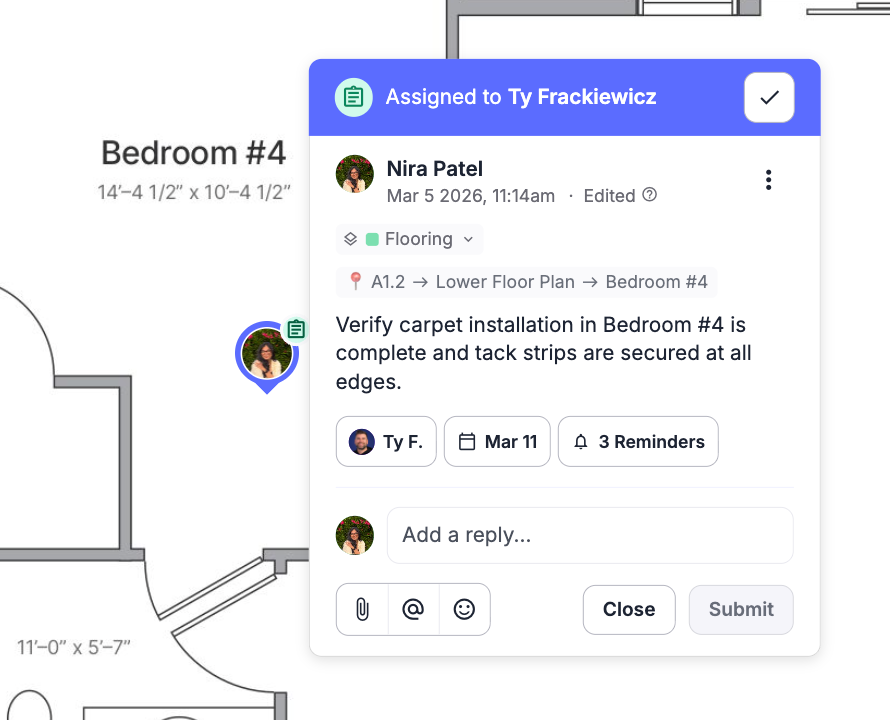
💡 Multiple tasks can exist at the same location. If several team members have pins clustered in one area, zoom in on the plan to distinguish between them.
Tasks and Layers
Every task is associated with a specific plan layer. This allows you to organize tasks by trade or system (e.g. HVAC, Electrical, Plumbing). When you create a task, it inherits the currently active layer shown in the top toolbar.
Managing Due Dates
Due dates help keep tasks on schedule and unlock reminder functionality. You can set or update a due date at any time, either when creating a task or after it has been submitted.
To set a due date:
Click the Due Date button in the task popup.
Select a date from the date picker.
The date will appear on the task card (e.g. "Mar 5").
To update a due date:
Click the task's pin on the floor plan to open the task detail.
Click the existing due date to edit it.
Select the new date and save.
To remove a due date: Open the task detail, click the due date, and clear the selection. Note that removing a due date will also disable any active reminders on that task.
⚠️ A due date must be set before reminders can be configured.
Managing Reminders
Reminders automatically notify the assigned team member as a task's due date approaches or passes. They can be configured during task creation or edited afterward.
To set reminders:
Set a due date on the task (required).
Click the Reminders button that appears.
Check one or more of the available intervals
You can select multiple options. For example, "3 days before" and "On due date" together. Each selected option sends a separate notification.
To edit or remove reminders: Open the task detail, click Reminders, and check or uncheck intervals as needed. Changes take effect immediately.