Building and Using Your Project Schedule
How to Use the Digs Scheduling Tool
Written By Dylan
Last updated About 3 hours ago
Scheduling gives every project one shared timeline, so your team, trades and clients know which stage you're in, what's next and when something slips. You can work in List view on any device, or in Gantt view on desktop and iPad. Scheduling is included in Pro and Enterprise plans and the 14-day free trial.
Open Your Schedule
Open a project.
Click the Schedule tab at the top left, next to Plan View. On a phone, use the menu at the top right.
Use the View dropdown to switch between List and Gantt.
Note: Phones will always show List view, even when you open a Gantt link.
Building the Schedule
Add Stages
A stage is one phase of the build, such as Framing or Drywall.
Click Add Stage.
Enter a name, description, start date and target date.
Choose a Lead and then set a Status.
Add any dependencies, choose a reminder, then save the stage.
To change a stage later, click the 3-dot menu to open the Edit Stage window.
Organize Your Stages
These options work in both views, and Digs saves your choices.
Filter: Filter the schedule by Active, Completed, or All statuses.
Sort/Group: Sort and group stages by status or lead, then collapse or expand each group.
Add to a group: click + on a group header to add a stage with that group's status or lead already filled in.
Reorder: drag rows into a new order. This works only when sort is set to Manual.
Manage Your Stages
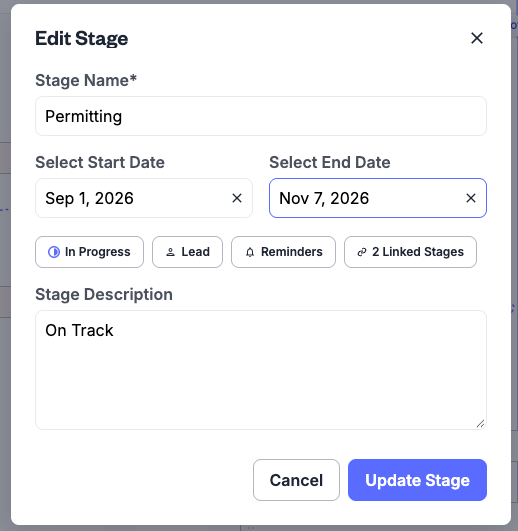
You can Edit, Duplicate, or Delete a stage from the 3-dot menu button on any stage. The Edit Stage Modal allows for updates to any property attached to the stage:
Handle Delays
When you change the target date of a stage others depend on, Digs previews what will move. The preview appears in both views and the “Edit Stage” window, with full dates. You will have three options:
Shift All/Shift Both: move this stage as well as the stages that depend on it.
Move This Stage Only: change only this stage.
Cancel: keep the original dates.
Stakeholders affected will be notified as soon as it happens.
Project Timeline
The Project Timeline at the top represents the progress of the overall project. You can also edit the dates of a stage or of the entire project from here.
Current stage: choose it from the dropdown in the top left. It doesn't follow today's date, so update it as work moves forward.
Project dates: set the project's start and end dates yourself, or clear them to sync with your stage dates again.
Work in Gantt View
Gantt view shows each stage as a bar on a timeline, so you can plan the order of work and easily spot overlaps.
How to Read Gantt View
Each bar represents a stage from its start date to its target date (🎯). Hover over a bar to see the full range.
Overdue stages are highlighted in red with a warning icon.
A faded bar is missing a start or target date. Undated stages appear in a No Dates Set box.
The vertical line marks today. Click Today to jump back to it at any time.
Zoom In and Out
Choose Week, Month or Year from the drop down menu, or pinch on a trackpad or iPad. On desktop, you can also hold Ctrl and scroll with your mouse.
Change Dates by Dragging
Drag the edges of a bar to change the start or end date.
Drag the middle of the bar to move the whole stage.
Dates snap to whole days, and the chart scrolls when you drag near its edge.
Link Stages With Dependencies
To link two stages together, there are two options:
Hover over the end of a bar until you see the hand, click and drag from the grey dot to the desired bar to create the line. On iPad, tap the bar first.
Click the 3 dot button and click “Edit Stage” to open a window and add stages under is blocked by or is blocking (same as List View).
To remove a link, click the line and press delete on your keyboard.
One stage can link to several others, and lines still show for stages in collapsed groups in Gantt view.
Frequently Asked Questions
Why Don't I See Gantt View?
Be sure Gantt view is selected in the view drop down menu. Otherwise, Gantt view only appears on desktop and iPad. If you’re on a computer and not seeing it, try widening your browser window.
Why Can't I Add or Edit Stages?
Your role doesn't include editing, so you'll see gray squares instead of grips and a grayed-out Add Stage button. Ask a project manager to update your role.
Why Does a Dependency Line Point Backward?
This happens when stages are linked before they have dates, such as in templates or duplicated schedules. Add dates to those stages to fix the lines.
Was this helpful?
Still need help? Ask the team