Warranty Reporting, Exporting Your Ticket Data
Written By JSB (Jason Brown)
Last updated 6 months ago
Digs now includes a simple reporting feature to help teams get visibility into warranty activity across all projects.
You can export a full list of warranty tickets and use that data to organize work, plan vendor activity, and communicate more effectively with your team.
This is the first step in expanding reporting capabilities, with more flexibility planned.
Where to Find the Report
To generate a report:
Go to the Warranty Dashboard
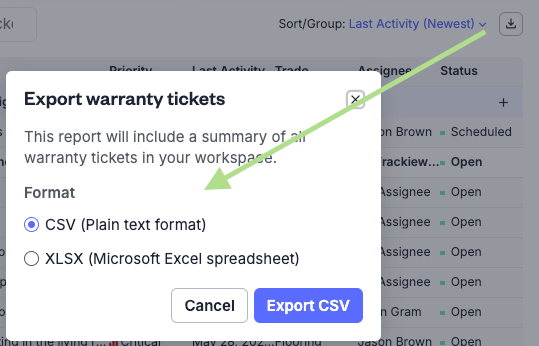
Locate the Export / Download icon near the filter and sort controls
Click the icon to open the export modal
Choose your format:
CSV -
Comma Separated, Double Quote text qualified
XLSX
Standard formatting
The file will download immediately after selection.
What the Report Includes
The export includes all warranty tickets across your Workspace, from all projects and all statuses.
There are no filters applied. This is a complete dataset intended for external organization and analysis. It is intentionally heavy handed so we can add more refined exports as follow up improvements.
Included Data Fields
Each ticket in the report includes the following information:
Ticket #
Digs generated IDTicket URL
Requires Warranty access. Used for Internal team quick accessProject Name
Follow-Up Date
Reserved for future inclusion- Currently blankClaim Number
Intended for storing Claim numbers with services like 2-10 Home Warranty etc. Reserved for future inclusion- Currently blankTicket Status
Priority
Ticket Subject
Editable by Warranty team for ease of sort or groupingDescription
The original description of the ticket concernCategory
Trade
Ticket Assignee
Created Date
Location
Reserved for future inclusion- Currently blankClassification
How to Use the Report
The goal is to give you a flexible dataset that can be shaped to match your workflow.
This report always includes all tickets. Filtering should be done after export.
CSV and XLS formats are both available depending on your preference.
Once exported, the file can be opened in Excel or similar tools and used to:
Create pivot tables
Group tickets by trade, project, or assignee
Plan vendor workload
Identify trends or recurring issues
Communicate status across teams
Next up
This is the first step in building out reporting for DigsCare Warranty.
Future improvements may include more flexible filtering, custom reports, and deeper insights directly inside Digs.